Manav Sampada UP
Manav Sampada UP is the Uttar Pradesh government’s online eHRMS (Electronic Human Resource Management System) for managing employee service records digitally. Through the portal, eligible state government employees can log in, apply for leave, download salary slips, check their service book, find employee information, and view transfer or posting orders.
The official Uttar Pradesh eHRMS portal is ehrms.upsdc.gov.in. Each registered employee receives an Employee ID or HRMS Code, which is linked to important service information such as leave, pay, postings and promotions.
Manav Sampada UP Official Website
The official website used by Uttar Pradesh government employees is ehrms.upsdc.gov.in. Manav Sampada, HRMS and eHRMS are commonly used names for the same employee management system.
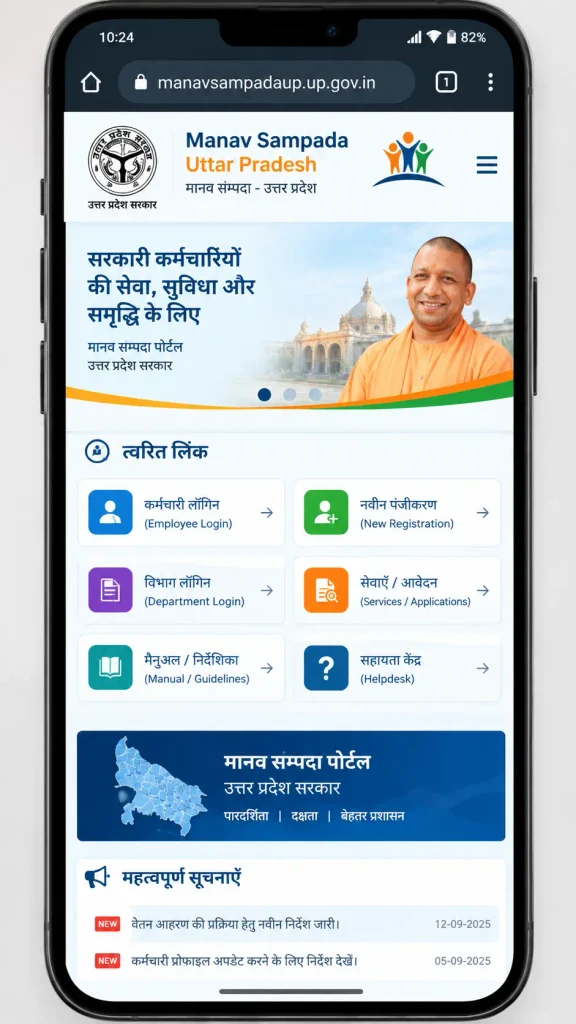
The national eHRMS platform is available separately, while Uttar Pradesh employees use the UP State Centre portal. When accessing the service, check that the website address ends with upsdc.gov.in and use the official government portal rather than an unofficial website.
The portal does not require employees to share their password or OTP through email or SMS. Employees should also avoid giving their Employee ID, password or OTP to unknown people or websites.
Who Can Use Manav Sampada UP?
Manav Sampada UP is intended for serving Uttar Pradesh government employees whose departments have been integrated with the eHRMS system. The employee record must first be created and maintained by the concerned department.
There is no normal self-registration process for a new employee. The department’s nodal officer provides the Employee ID and manages the employee’s registration. Depending on departmental policy, retired employees may have limited, view-only access to their records and documents.
How to Log In to Manav Sampada UP
The eHRMS login process requires the employee to select the correct department and enter the credentials issued by the department.
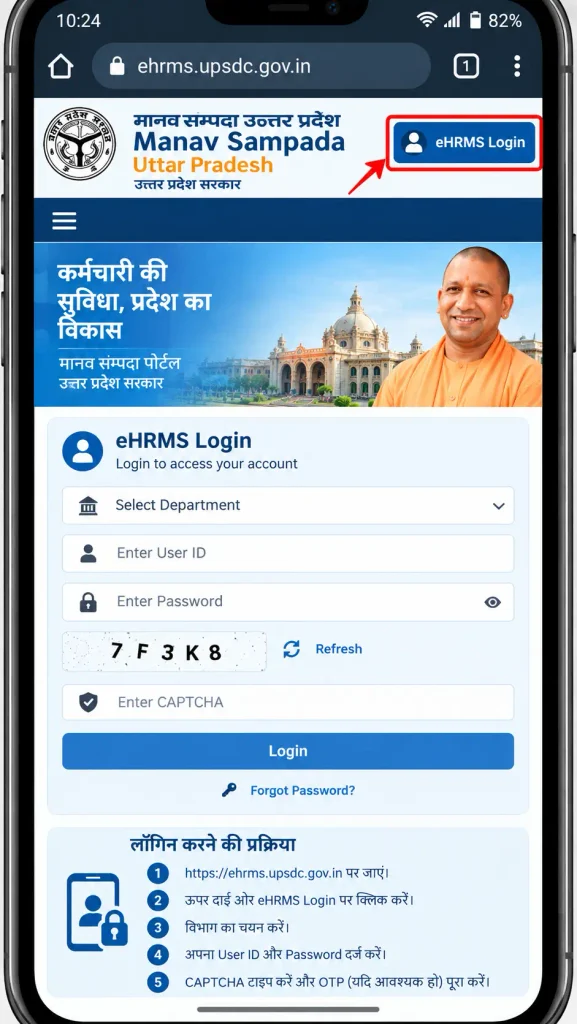
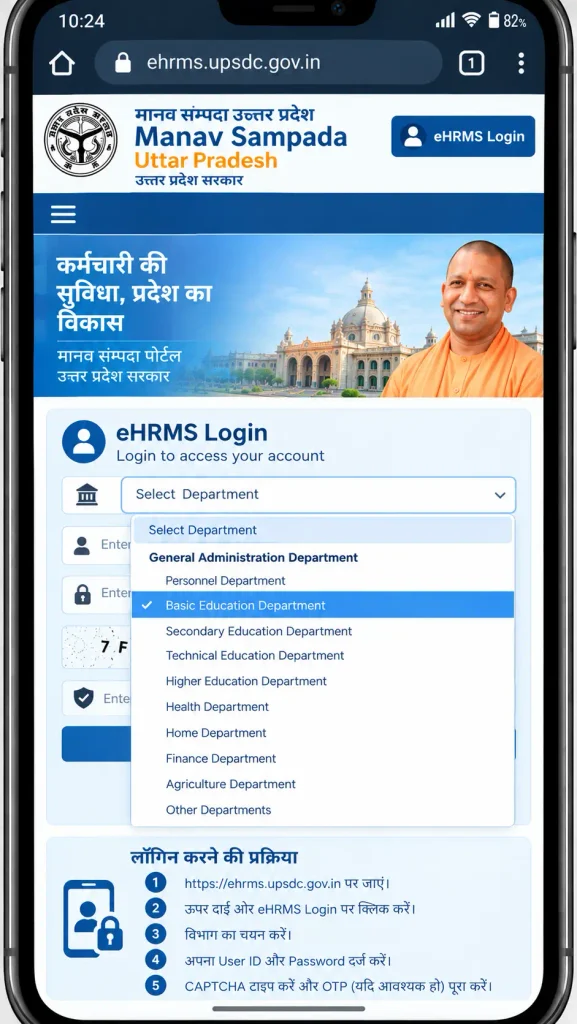
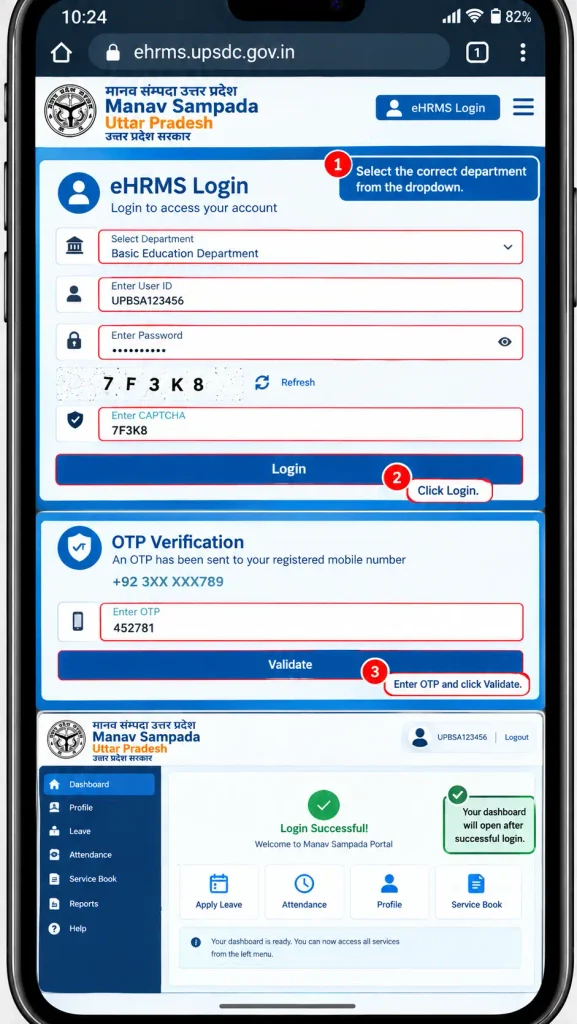
Follow these steps:
Selecting the wrong department is one of the important things to check when an otherwise correct Employee ID does not work.
First-Time Login and Password Setup
For a first-time login, the commonly used default password format is the first three letters of the employee’s name in capital letters followed by the four-digit birth year. For example, an employee named Rajesh born in 1981 may have a default password in the format RAJ1981.
This format may not work if the password has already been changed through the Forgot Password option. The spelling of the employee’s name in the official record also matters.
After accessing the account for the first time, employees should create a stronger personal password and check their registered mobile number, email address and basic service information. If the joining date, designation, office or another locked service detail is incorrect, the correction should be requested through the DDO or departmental nodal officer.
Forgot Password and Account Recovery
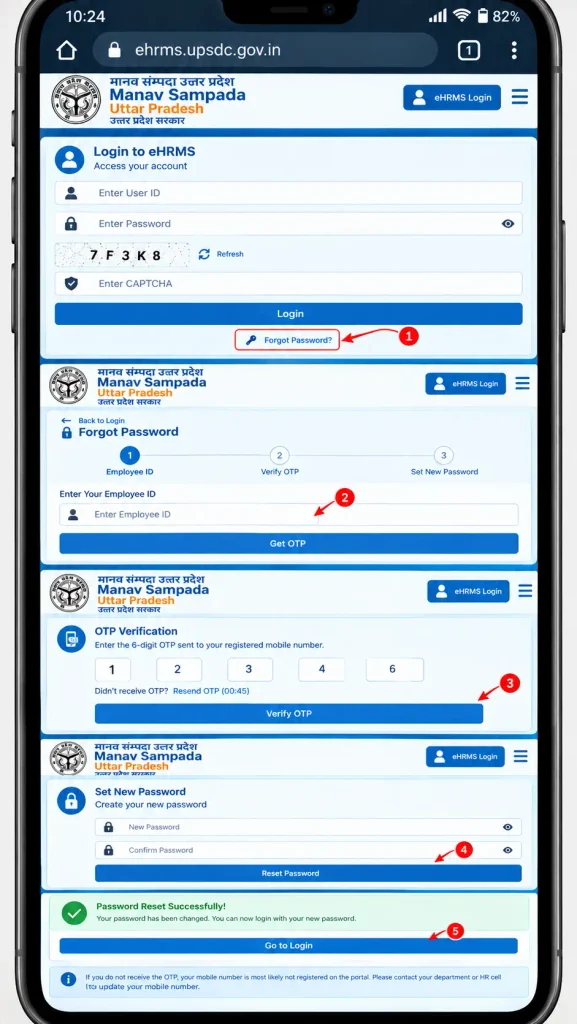
Employees who cannot remember their Manav Sampada password can use the Forgot Password option on the login page.
The usual process is:
- Select Forgot Password.
- Enter the Employee ID.
- Complete the required verification.
- Enter the OTP sent to the registered mobile number.
- Set a new password.
If the OTP does not arrive, the registered mobile number may be missing or incorrect in the employee record. In that situation, the employee should contact the departmental nodal officer for an update.
Department-Wise Manav Sampada Login
The basic login process is similar across departments, but employees must select the department connected to their records.
Basic Education and Teacher Login
Basic Education teachers can access the portal by selecting their relevant Basic Education directorate. After login, teachers can use available services such as leave applications, the e-Service Book and transfer or posting information.
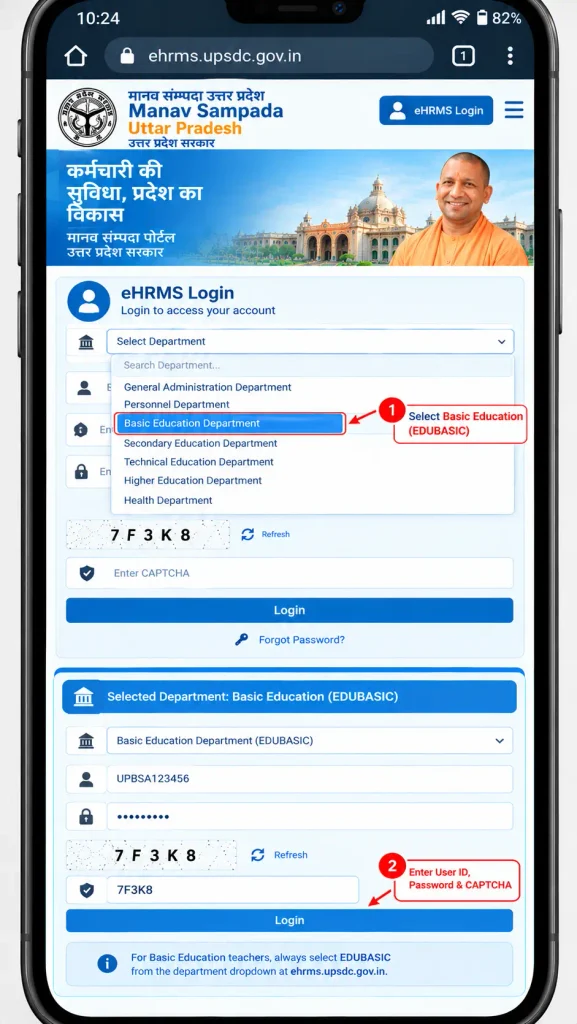
The Employee ID can generally be found on documents such as the appointment letter, government ID card, salary slip and service book. If a teacher’s account is inactive or the login does not work, the appropriate school, block or departmental official can help verify the employee record.
Medical and Health Department
Doctors, nurses and other eligible Medical and Health Department employees follow the same general login procedure. After selecting the relevant department, they can access available employee services such as leave, salary information and the service book.
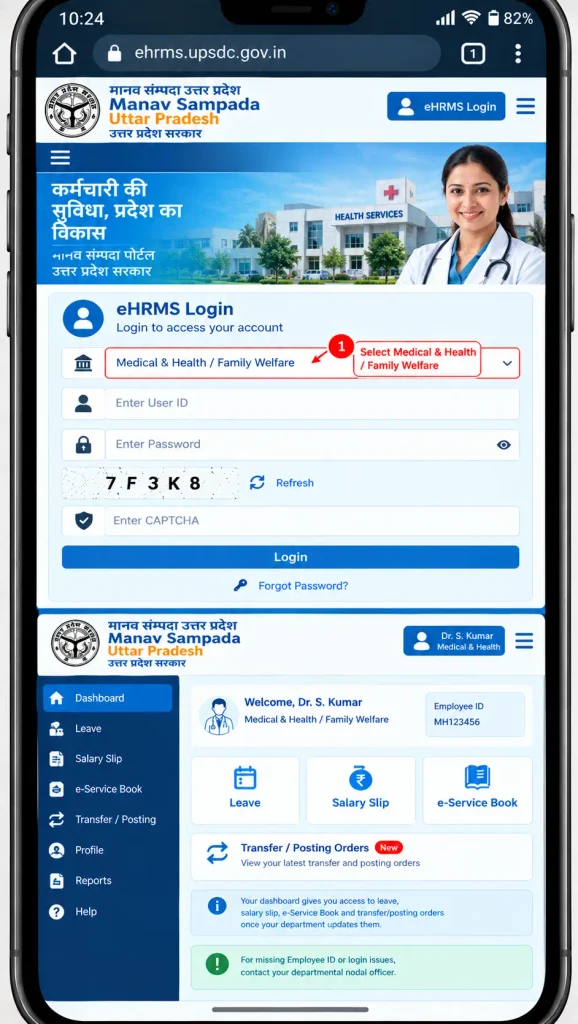
Transfer and posting information can also appear after the department updates the employee’s record.
Police Department
Police personnel can select the Home (Police) department during login. Once inside the dashboard, available payroll services can be used to view and download salary information.
The actual salary shown on the portal depends on the employee’s pay level, rank and applicable allowances. The downloaded salary statement should therefore be treated as the relevant payroll record for that month.
How to Find Your Manav Sampada Employee ID
The Employee ID is important because it identifies the employee’s digital service record. It can be found through official documents or the public employee search facility.
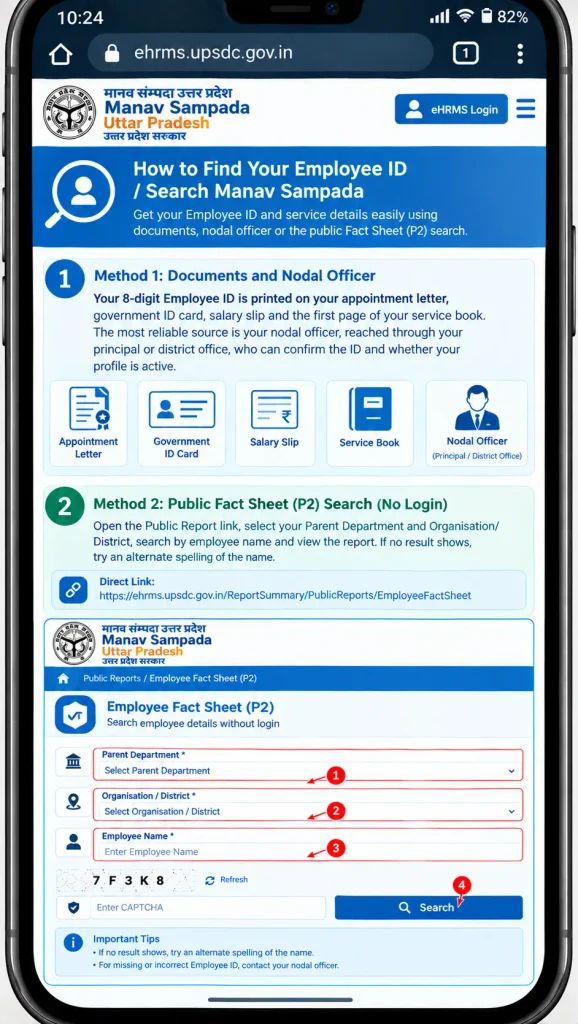
Employees can check:
Another option is the public Employee Fact Sheet (P2) search available through the portal. Employees can select their parent department and organisation or district and search for their record by name.
If the search produces no result, checking the spelling used in the official employee record may help.
Applying for Leave Online
The Manav Sampada leave module allows eligible employees to submit leave applications electronically.
Before submitting the first application, an employee generally needs to add a Reporting Officer. Without a reporting officer, the system may not have the appropriate authority to receive and process the request.
The basic process is:
Available leave categories can include Casual Leave, Earned Leave, Medical Leave, Maternity Leave, Paternity Leave, Child Care Leave and Study Leave, depending on the employee’s applicable service rules.
Documents for Different Leave Types
Supporting documents depend on the type of leave being requested.
| Leave type | Examples of supporting documents |
|---|---|
| Medical Leave | Doctor’s/RMP certificate and supporting medical reports |
| Maternity Leave | Hospital admission proof and related certificate |
| Child Care Leave | Child’s birth certificate and applicable school or medical document |
| Study Leave | Admission letter and proof of course duration |
The supplied portal guidance specifies keeping uploaded PDF documents under 2 MB where required.
Check Leave Status and Leave Balance
After submitting a request, employees can use the leave history or status section to track its progress.
A request may appear as:
| Status | Meaning |
|---|---|
| Pending | Waiting for approval from the concerned officer |
| Approved | Leave has been sanctioned |
| Rejected | The request has not been approved; check the remarks |
The Leave Balance or Leave Account section can also show the employee’s available leave balance where the service is enabled.
How to Download Manav Sampada Salary Slip
One of the most commonly used services is the online salary slip or pay slip.
After logging in:
The salary slip contains the monthly earnings and deductions recorded for the employee. It can be retained for official records and may also be used as income documentation when required.
If a particular month’s salary slip is missing, the payroll information for that month may not have been updated yet. Employees can wait for the record to be updated or contact their department’s accounts or HR section.
Transfer and Posting Orders on Manav Sampada
Transfer and posting information is available through both public and employee-specific areas of the portal.
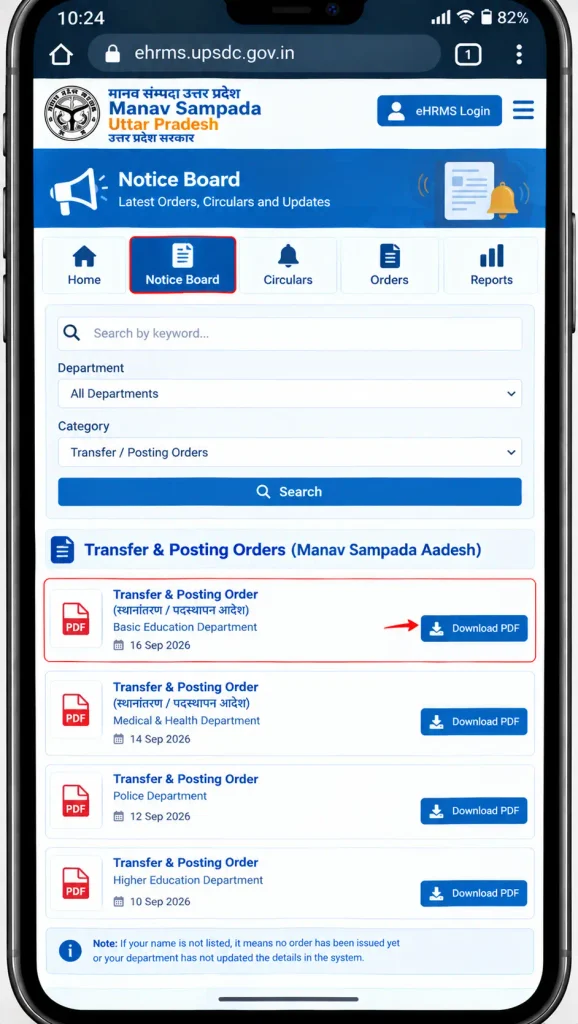
Department-wide orders can be published on the Notice Board, while an employee’s personal transfer or posting information can appear in the Transfer or Posting section after login.
Published orders can be opened or downloaded as PDF documents. Some orders may contain a QR code for document verification. If a particular order is not visible, it may not have been issued yet or the department may not have updated it in the system.
View Your e-Service Book
The e-Service Book brings important service information together in digital form. Depending on the employee record, it can include details relating to appointment, promotions, transfers, pay and leave history.
Employees generally cannot directly edit locked service-book entries. If an increment, posting, ACR entry or another service detail appears incorrect, the employee should submit the correction request through the appropriate DDO or nodal officer with supporting documents.
Keeping these records accurate is important because service information can be needed for future administrative and pension-related processing.
Public Services Available Without Login
Not every Manav Sampada service requires an employee account. The portal provides public reporting facilities that can be accessed without signing in.
Office List
The Office List allows users to filter offices according to department, district and office category. Available results can be exported in PDF or Excel format.
Employee Fact Sheet
The P2 Employee Fact Sheet can be used to search employee service information through the available public search fields. It is also useful for locating an Employee ID when the employee does not have the number readily available.
Manav Sampada Mobile App and m-STHAPANA
The official mobile application is commonly known as Manav Sampada or m-STHAPANA. It provides access to key employee services such as leave, salary slips and service-book information.
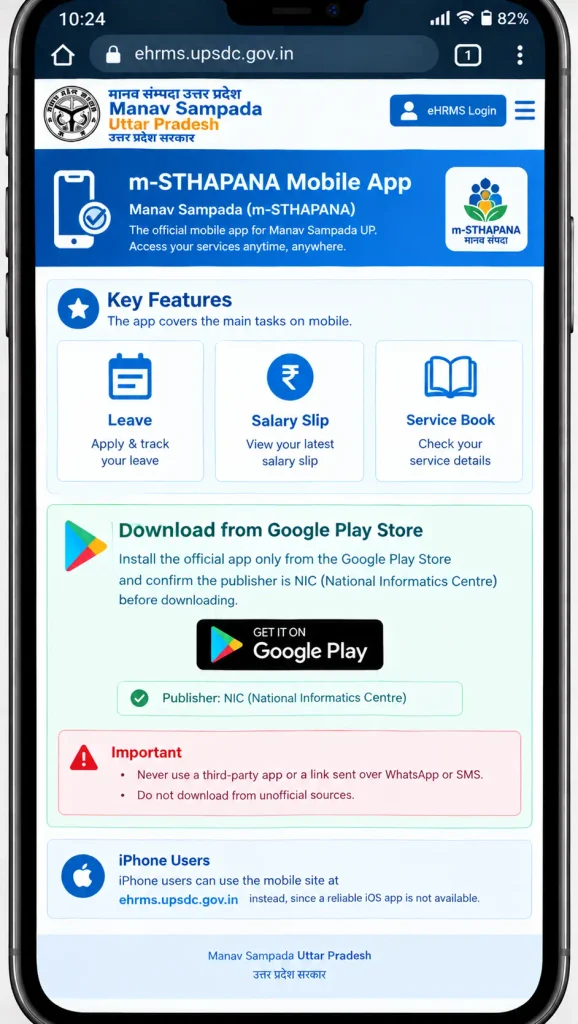
Employees should install the application only through the official Google Play Store and check that the publisher is NIC (National Informatics Centre). Users should avoid installing applications received through unknown links, WhatsApp messages or SMS.
For iPhone users, the supplied information recommends using the mobile website at the official eHRMS portal because a reliable iOS application is not available.
Common Manav Sampada UP Problems
Most access problems can be narrowed down by checking the account, department selection and registered contact information.
| Problem | What to check |
|---|---|
| OTP not received | Confirm that the correct mobile number is registered |
| Employee ID rejected | Check that the correct department was selected |
| CAPTCHA invalid | Enter the CAPTCHA exactly as displayed and refresh it if necessary |
| Default password fails | Use the current password or reset it |
| Account locked | Wait for the applicable lock period and use password recovery if needed |
| Salary month missing | Check whether that month’s payroll has been updated |
| Service information incorrect | Contact the DDO or nodal officer with supporting proof |
Repeated failed login attempts should be avoided. If the account remains inaccessible, the departmental official responsible for eHRMS records is the appropriate point of contact.
Manav Sampada UP Services at a Glance
| Service | Login required | Main location |
|---|---|---|
| eHRMS Login | Yes | Homepage |
| Leave application | Yes | Leave Module |
| Salary slip | Yes | Payroll / Salary Slip |
| e-Service Book | Yes | Service Book |
| Transfer and posting | Public + Login | Notice Board / Transfer section |
| ACR | Yes | Employee services |
| Employee search | No | Fact Sheet (P2) |
| Office search | No | Public Reports |
Frequently Asked Questions
Final Words
Manav Sampada UP brings important government employee services into one digital system. From eHRMS login and online leave applications to salary slips, service books, Employee ID searches and transfer orders, the portal reduces the need to depend on paper records for routine services.
For account, service-record or login problems, employees should rely on their departmental nodal officer or DDO and verify important information through the official Uttar Pradesh eHRMS portal.